

What Apple Maps can and can’t import
As of October 2026, Apple Maps has no import for Google Maps lists or for files of places. Apple’s iPhone User Guide describes one way to fill a guide: open a place card, tap Add to Guides and pick a guide. Once the guide is built, you can share it.
For ten places that’s a few minutes. For a list of 300 it’s an evening.
Four ways to move a Google Maps list to your iPhone
| Way | What you do | What you get | Cost |
|---|---|---|---|
| Keep Google Maps | Install Google Maps for iPhone and sign in | Your lists as they are | Free |
| Rebuild it in Apple Maps | Search each place, tap Add to Guides | An Apple Maps guide | Free |
| Export with Google Takeout | Request the export, wait for Google’s email, open the files | One CSV per list with names, notes and links | Free |
| Share the list to Matcha | Share the link, choose places, tap Add | Places on Matcha’s map, ready to score | Free download, 7-day free trial, then $9.99/year |
Keep using Google Maps
If you only want your saved places on your iPhone for directions, the Google Maps app already shows every list under the You tab. It costs nothing and works for friends on Android too.
Rebuild the list in Apple Maps
Open the list in Google Maps, then search each place in Apple Maps and add it to a guide. It’s free, and the guide lives in Apple Maps. It’s slow for long lists, and you retype any notes yourself.
Export with Google Takeout
Google Takeout gives you one CSV file per list with each place’s name, your note and a Google Maps link. The files have no addresses or coordinates. Some apps read them anyway: Mapstr, for one, imports Takeout files and shared list links (Mapstr’s import help, as of October 2026). Step by step: how to export Google Maps saved places. How Mapstr and Matcha differ: Mapstr alternative.
Share the list to Matcha
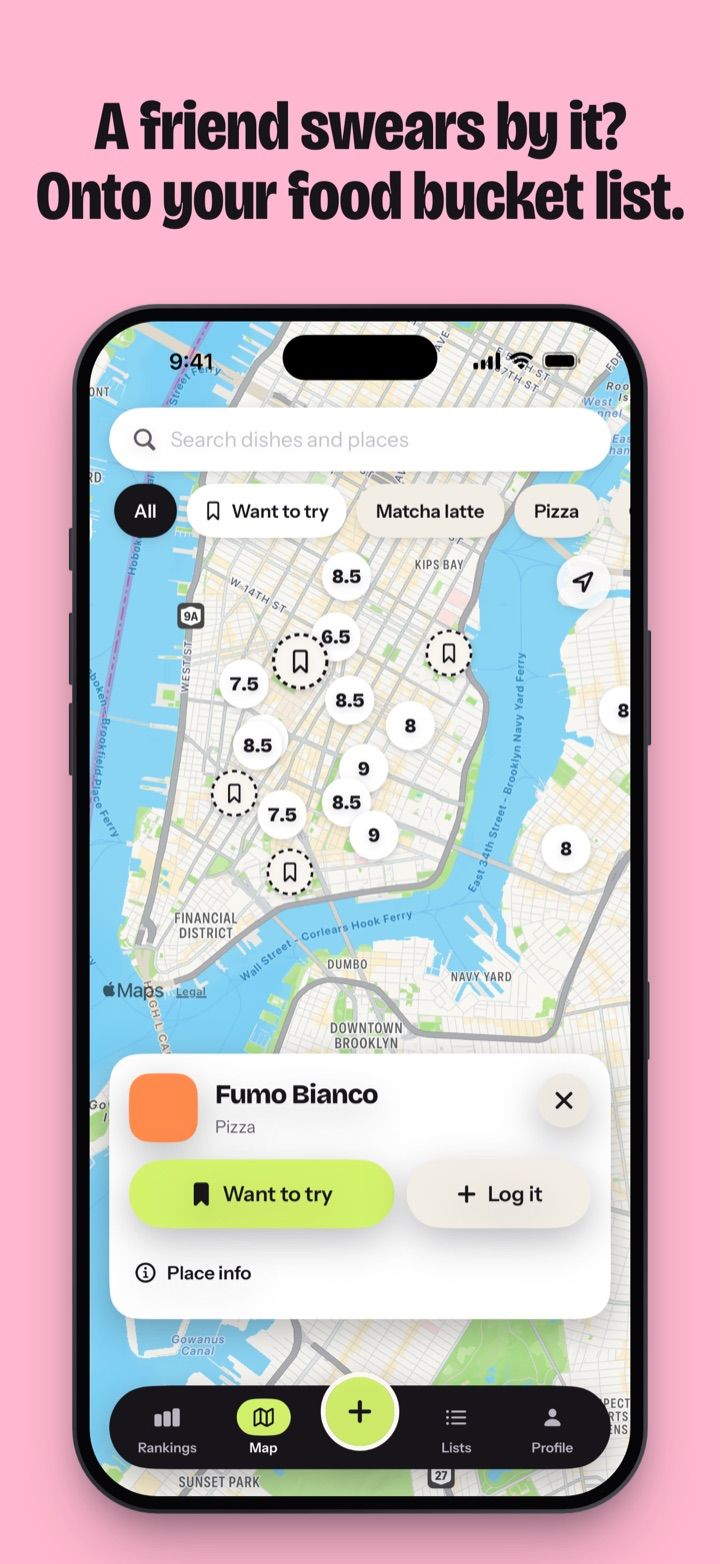
Matcha reads the list straight from its link, on your iPhone. You see the list’s cities, untick what you don’t want and add the rest. The places land on Matcha’s map, which uses Apple Maps, and Directions opens them in Apple Maps.
If you share from Google Maps, the places are added the next time you open Matcha. The share sheet lets you pick whole cities only. To untick single places or search the list, paste the link in the app instead.
What happens to the places
- Each place keeps its name, address and pin, and remembers which Google Maps list it came from. The filter on the map and in Rankings › Restaurant has a From Google Maps group with your imported lists.
- Imported places are saved places: small ink pins on the map, and rows in Rankings › Restaurant after the places you’ve rated.
- Open one to see Apple’s hours, photos and reviews when Apple Maps knows the place. From there you can get directions, tap Want to try, or tap Add to score a dish once you’ve eaten there.
- To remove a place, swipe its row or tap Remove in the place sheet. If you import the same list again, removed places come back.
- A Google Maps list holds up to 3,000 places (Google, as of October 2026), and Matcha reads up to 3,000 from one list.
The import runs on your iPhone. Matcha doesn’t keep the link, and your list never goes through a Matcha server. To compare the two day to day, see Matcha vs Google Maps lists.
If the import doesn’t work
| Matcha says | What to do |
|---|---|
| This list is private | In Google Maps, set the list to Shared, then share it again. |
| Not a list link | Share the list itself. A link to one place or to a search won’t work. |
| No connection | The import needs the internet. Try again when you’re online. |
| Can’t read this list | Google may have changed something on its side. Try again later or contact support. |
| Import is off for now | We’ve paused the import for a while. Try again later. |